
HOW TO STRIP METADATA (THE RIGHT WAY)
FIRST: THE CORE RULE
If you didn’t strip metadata yourself, assume it’s still there.
Platforms, apps, and “private sharing” are not reliable.
1. HOW TO STRIP METADATA FROM PHOTOS
Option A: On Your Phone (Fastest)
iPhone
-
Open the photo
-
Tap the ⓘ info icon
-
Tap Location → Remove Location
-
Share after removal
⚠️ Note: This removes GPS, not all metadata.
Android
-
Open photo
-
Tap three dots → Edit location
-
Remove location
-
Save a copy
Option B: Desktop (Most Reliable)
Windows
-
Right-click image → Properties
-
Go to Details
-
Click Remove Properties and Personal Information
-
Create a copy with metadata removed
macOS
-
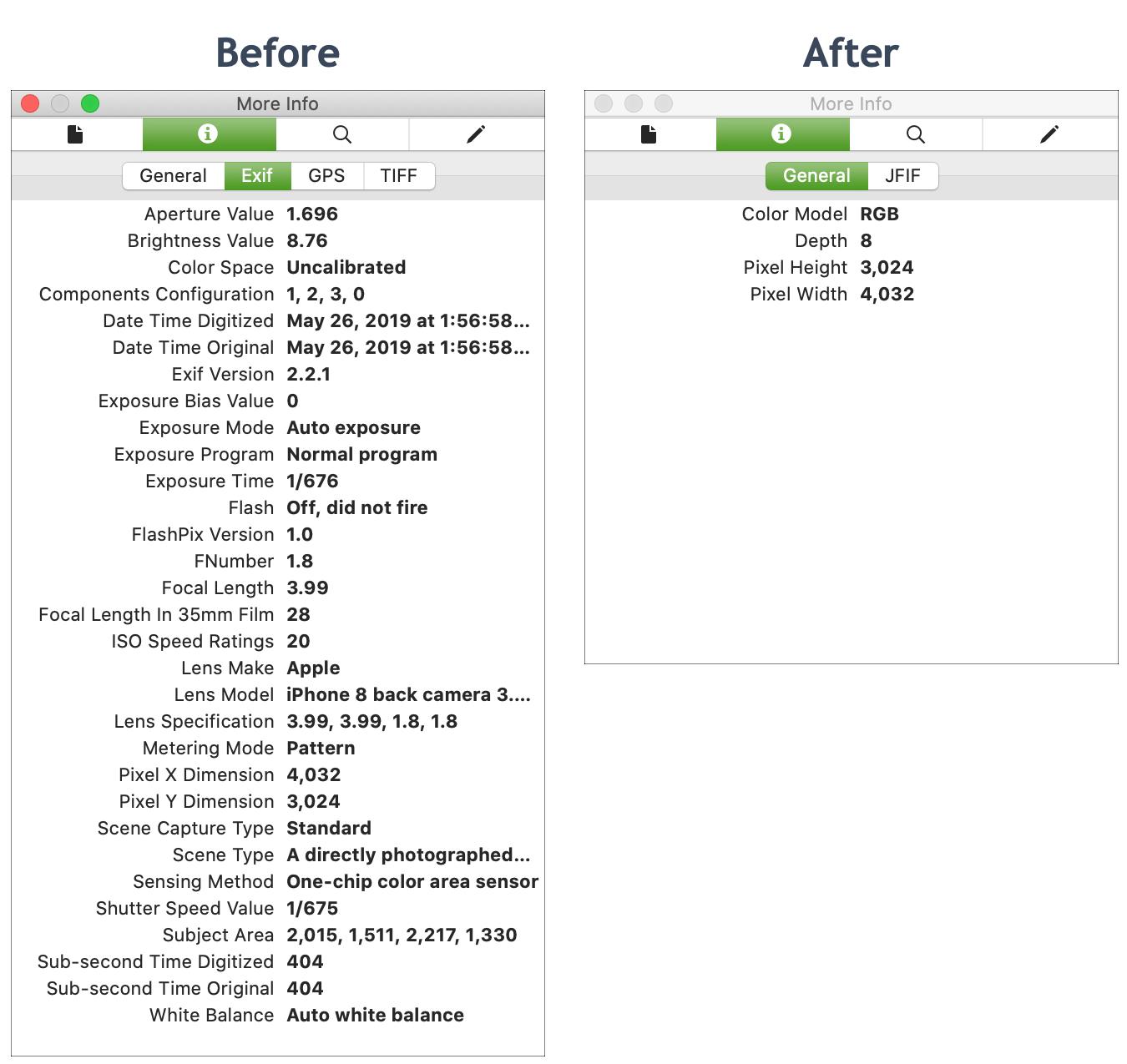
Open image in Preview
-
Tools → Show Inspector
-
Go to Info (i) → GPS
-
Remove location
(For full removal, export or use a dedicated tool)
Best Practice (Recommended)
-
Export as a new file
-
Never upload the original
-
Test the stripped file before sharing
2. HOW TO STRIP METADATA FROM DOCUMENTS (PDF, Word, Docs)
Microsoft Word / Excel / PowerPoint
-
File → Info
-
Click Check for Issues
-
Select Inspect Document
-
Remove all found metadata
-
Save as a new file
PDFs
Safest method:
-
Print to PDF
This flattens the file and removes most metadata.
⚠️ Don’t rely on “Save As” alone—it often preserves data.
3. HOW TO STRIP METADATA FROM VIDEOS
Videos often contain:
-
GPS
-
Device info
-
Creation timestamps
Simple Method
-
Re-export the video using an editor
-
Disable “preserve metadata” if shown
-
Save as a new file
Safer Method
-
Use a dedicated metadata remover
-
Verify with a metadata viewer afterward
4. ONLINE METADATA REMOVAL TOOLS (USE WITH CAUTION)
Pros:
-
Easy
-
Fast
Cons:
-
You upload your file to someone else’s server
-
Not safe for sensitive content
Rule:
If the file is private, legal, or sensitive → don’t use online tools.
5. HOW TO VERIFY METADATA IS GONE (MOST PEOPLE SKIP THIS)
Always check:
-
Right-click → Properties / Details
-
Use a metadata viewer
-
Reopen the file and inspect info panels
If anything shows up — it’s not clean.
6. THE SAFEST SHARING WORKFLOW (TEACH THIS)
-
Create content
-
Export a copy
-
Strip metadata
-
Verify metadata removal
-
Share the stripped file only
Never reuse the original.

 Arabic
 French
 Spanish
 Portuguese
 Deutsch
 Turkish
 Dutch
Dutch
 Italiano
 Russian
 Romaian
 Portuguese (Brazil)
 Greek
Greek