
How to Boot Windows 11 into Safe Mode
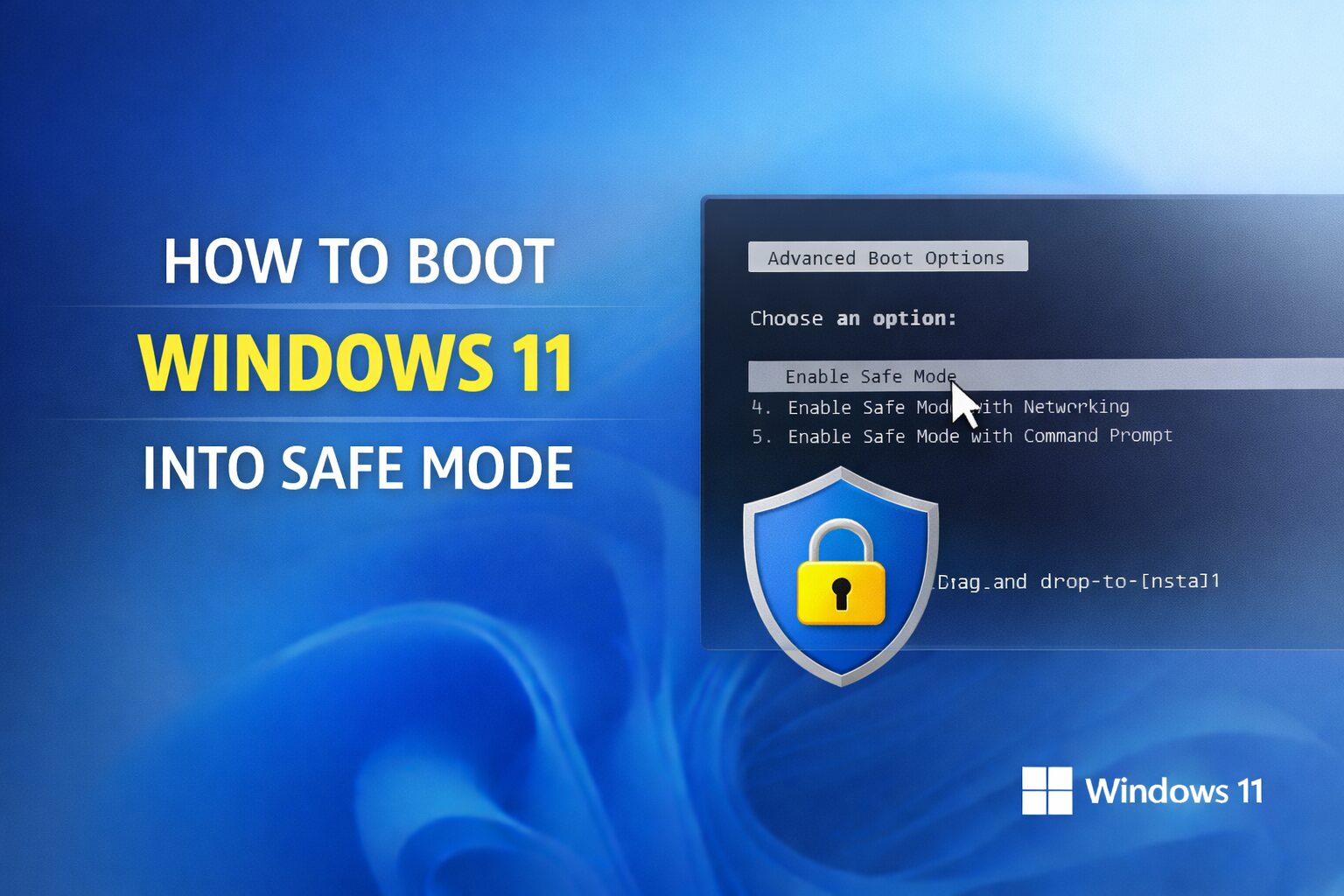
Safe Mode is a diagnostic startup option in Windows 11 that loads the system with only essential drivers and services. It is used to troubleshoot issues such as crashes, malware infections, driver conflicts, or startup failures.
When Windows is unstable or refuses to boot normally, Safe Mode can help isolate the cause.
What Safe Mode Does
When you start Windows in Safe Mode:
- Only basic system drivers load
- Startup programs are disabled
- Third-party services do not run
- Advanced hardware drivers are not loaded
This allows you to:
- Remove problematic drivers
- Uninstall faulty updates
- Scan for malware
- Fix registry or system file issues
- Roll back changes
Method 1: Boot into Safe Mode from Settings (If Windows Still Loads)
If you can access your desktop:
- Press Windows + I to open Settings.
- Go to System > Recovery.
- Under Advanced startup, click Restart now.
- Select Troubleshoot.
- Click Advanced options.
- Select Startup Settings.
- Click Restart.
After your PC restarts, press:
- 4 for Safe Mode
- 5 for Safe Mode with Networking
- 6 for Safe Mode with Command Prompt
Method 2: Boot into Safe Mode from the Sign-In Screen
If you cannot log in:
- On the login screen, hold the Shift key.
- Click the Power icon.
- Select Restart while still holding Shift.
- Follow: Troubleshoot > Advanced options > Startup Settings > Restart.
Choose the Safe Mode option you need.
Method 3: Force Windows Recovery (If System Will Not Boot)
If Windows will not start at all:
- Power on your PC.
- As soon as Windows begins loading, hold the power button to force shutdown.
- Repeat this process three times.
On the fourth boot, Windows will enter the Recovery Environment automatically.
From there:
Troubleshoot > Advanced options > Startup Settings > Restart
Then select Safe Mode.
Method 4: Use MSConfig to Always Boot into Safe Mode
If you need repeated Safe Mode access:
- Press Windows + R.
- Type
msconfigand press Enter. - Go to the Boot tab.
- Check Safe boot.
- Select the type:
- Minimal (Standard Safe Mode)
- Network (Safe Mode with Networking)
- Click Apply and restart.
Important: Remember to uncheck Safe boot later, or Windows will continue booting into Safe Mode.
Types of Safe Mode Explained
Safe Mode (Minimal)
Loads only essential drivers and services.
Safe Mode with Networking
Includes network drivers, allowing internet access.
Safe Mode with Command Prompt
Opens directly into Command Prompt instead of the desktop.
When Should You Use Safe Mode?
Safe Mode is recommended if:
- Windows crashes after login
- A driver update broke the system
- Malware prevents normal startup
- You see repeated blue screens
- Startup programs are causing issues
- The system is stuck in a boot loop
Safe Mode vs Clean Boot
Safe Mode:
- Disables almost everything
- Designed for deep troubleshooting
Clean Boot:
- Loads Windows normally
- Disables third-party services manually
Safe Mode is more restrictive and better for serious issues.
How to Exit Safe Mode
If you entered via Startup Settings, simply restart your PC.
If you used MSConfig:
- Press Windows + R
- Type
msconfig - Go to the Boot tab
- Uncheck Safe boot
- Restart
Common Problems in Safe Mode
No internet connection
Use Safe Mode with Networking instead.
Black screen
Restart and try a different Safe Mode option.
Still crashing
Run SFC or DISM from Safe Mode.
Read the full article: https://luckyy.uk/how-to-boot-windows-11-into-safe-mode/

 English
 Arabic
 French
 Spanish
 Portuguese
 Turkish
 Dutch
Dutch
 Italiano
 Russian
 Romaian
 Portuguese (Brazil)
 Greek
Greek