
How to Install Fonts in Windows 11
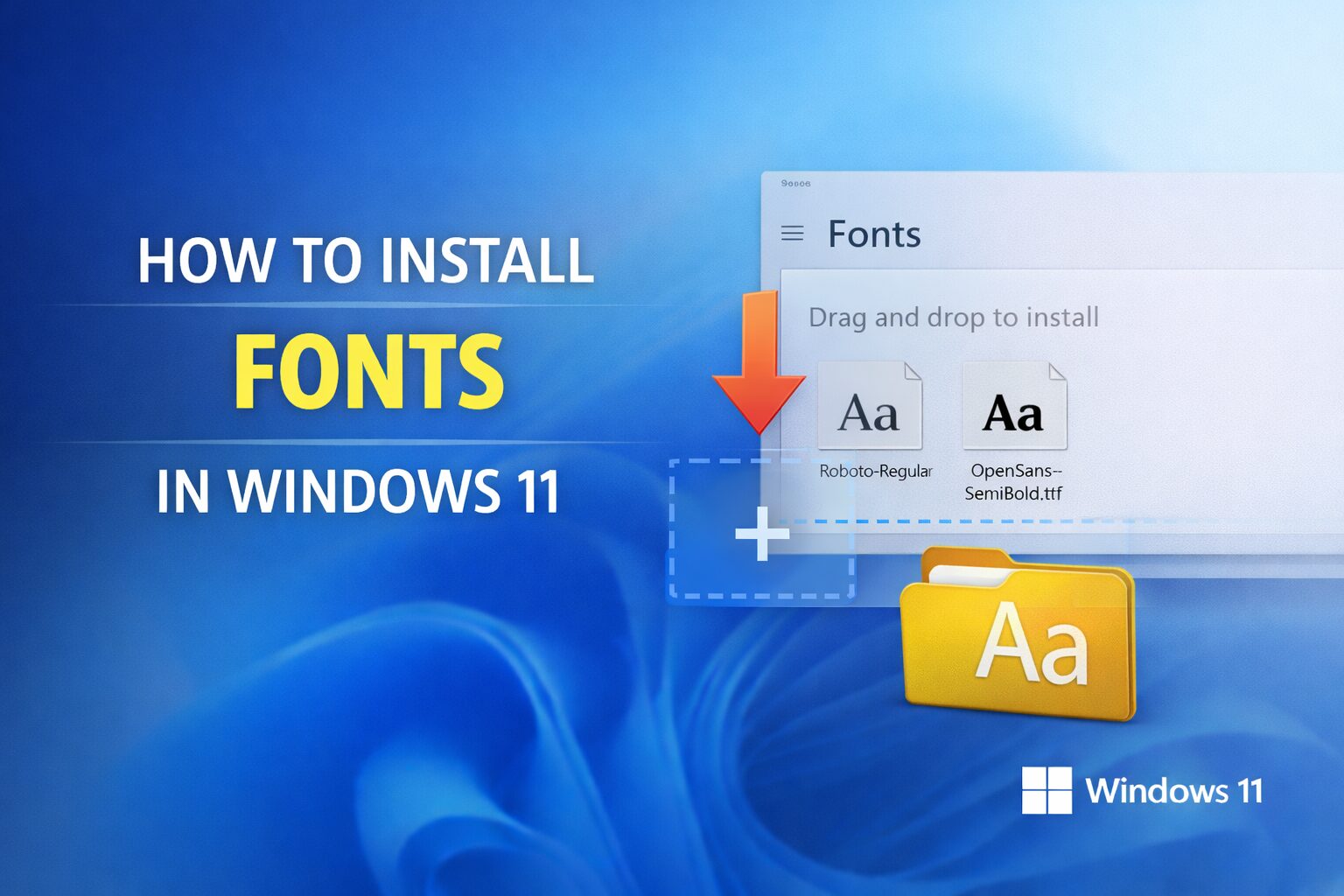
Installing fonts in Windows 11 allows you to use new typefaces in applications like Microsoft Word, Photoshop, Canva, and other design or office tools. Windows supports TrueType (.ttf), OpenType (.otf), and certain variable font formats.
This guide explains multiple ways to install fonts, troubleshoot issues, and manage them properly.
Method 1: Install Fonts Using Right-Click (Fastest Way)
- Download the font file (usually .ttf or .otf).
- Locate the downloaded file.
- Right-click the font file.
- Click Install.
If you want the font available to all users on the PC:
- Right-click
- Select Install for all users
The font installs instantly and becomes available in compatible applications.
Method 2: Install Fonts via Settings (Recommended Method)
- Press Windows + I to open Settings.
- Go to Personalization > Fonts.
- Drag and drop the font file into the “Add fonts” section.
This method allows you to preview and manage fonts easily.
Method 3: Install Multiple Fonts at Once
If you downloaded a font pack:
- Extract the ZIP file first.
- Open the extracted folder.
- Select all font files (Ctrl + A).
- Right-click and choose Install.
Windows will install them in batch.
Where Fonts Are Stored in Windows
Installed fonts are stored in:
C:\Windows\Fonts
You can view, delete, or preview fonts from this folder.
How to Uninstall a Font
Option 1: Through Settings
- Open Settings > Personalization > Fonts.
- Click the font you want to remove.
- Select Uninstall.
Option 2: Through Control Panel
- Press Windows + R
- Type:
control fonts - Select the font.
- Click Delete.
Supported Font Formats in Windows 11
Windows 11 supports:
- .ttf (TrueType)
- .otf (OpenType)
- .ttc (TrueType Collection)
- Variable fonts (in supported apps)
If the file is not one of these formats, Windows may not recognize it.
Fix: Font Not Showing in Applications
If you installed a font but cannot see it:
- Restart the application.
- Restart Windows.
- Ensure the font was installed for all users if required.
- Check that the application supports custom fonts.
- Confirm the font file is not corrupted.
Some older programs require administrator-level font installation.
How to Install Fonts Using Command Prompt (Advanced)
You can manually copy fonts into the system directory:
- Copy the font file.
- Paste into:
C:\Windows\Fonts - Approve the administrator prompt.
This achieves the same result as right-click install.
Installing Fonts from Microsoft Store
Windows 11 also allows font installation from the Microsoft Store:
- Open Settings > Personalization > Fonts.
- Click Get more fonts in Microsoft Store.
- Choose a font and install.
These fonts integrate automatically.
Security Considerations
Fonts can technically contain malicious code if sourced from untrusted websites. To reduce risk:
- Download fonts from reputable sites.
- Scan downloaded files with antivirus.
- Avoid unknown executable font installers (.exe files).
Stick to .ttf or .otf files whenever possible.
Installing fonts in Windows 11 is straightforward using right-click install, drag-and-drop via Settings, or batch installation. Most issues arise from unsupported formats or application caching.
For best results:
- Use supported file formats.
- Restart apps after installation.
- Install for all users when necessary.
Read the full article: https://luckyy.uk/how-to-install-fonts-in-windows-11/

 English
 Arabic
 French
 Spanish
 Deutsch
 Turkish
 Dutch
Dutch
 Italiano
 Russian
 Romaian
 Portuguese (Brazil)
 Greek
Greek