
How to Change Virtual Desktops in Windows 11
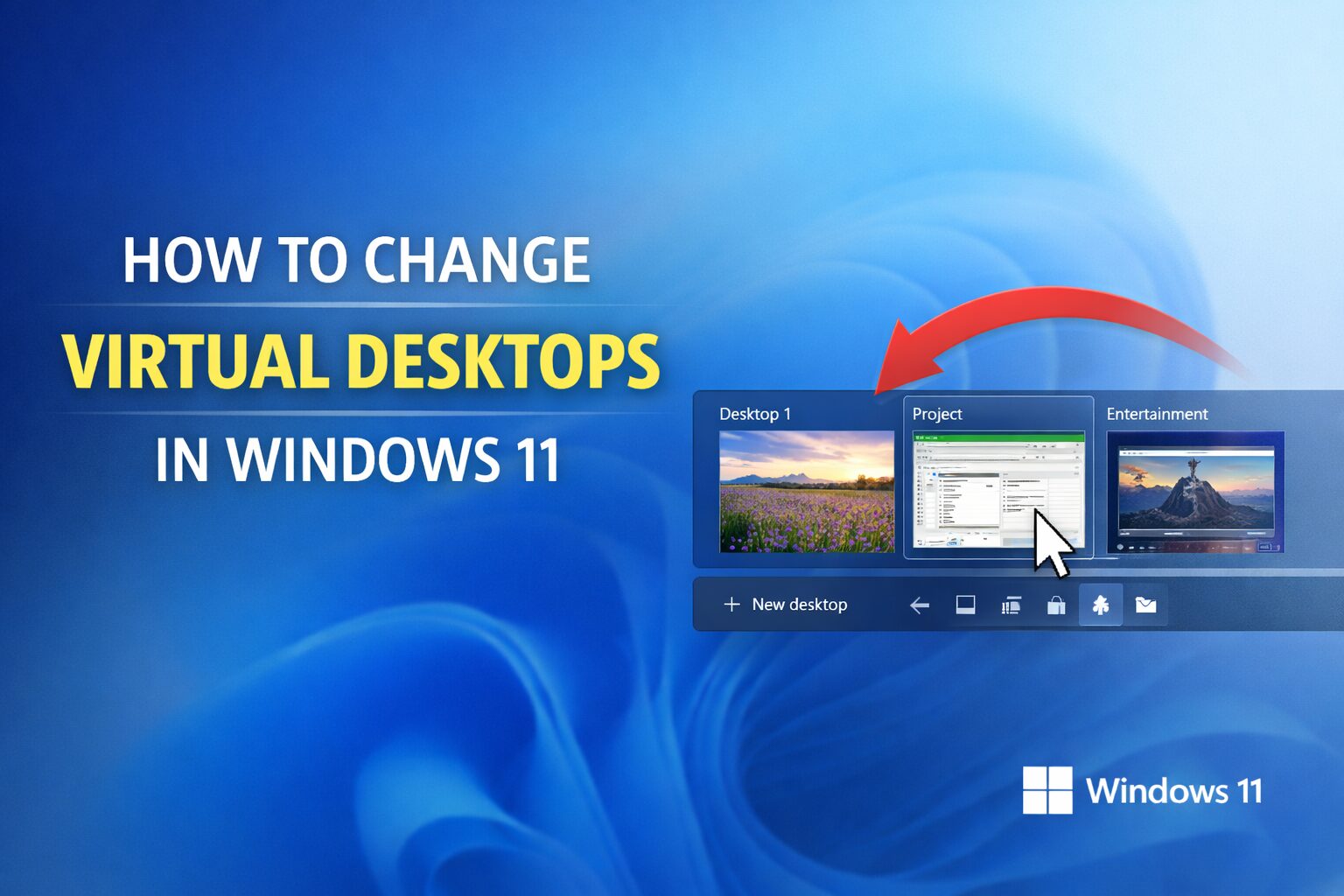
Virtual desktops in Windows 11 let you organize your work by separating apps into different desktop spaces. You can create multiple desktops for work, gaming, browsing, or personal tasks.
This guide shows how to switch, create, rename, and remove virtual desktops.
How to Switch Between Virtual Desktops
Using the Taskbar
- Click the Task View icon on the taskbar (two overlapping rectangles).
- At the bottom of the screen, select the desktop you want to switch to.
If you don’t see Task View:
- Right-click the taskbar
- Turn on Task View
Using Keyboard Shortcuts (Fastest Way)
- Press Windows + Ctrl + Left Arrow → Move to the desktop on the left
- Press Windows + Ctrl + Right Arrow → Move to the desktop on the right
This is the quickest way to switch desktops.
How to Create a New Virtual Desktop
- Click the Task View icon.
- Click New desktop at the bottom.
Or use the shortcut:
Windows + Ctrl + D
This instantly creates and switches to a new desktop.
How to Rename a Virtual Desktop
- Open Task View.
- Right-click the desktop name (e.g., Desktop 1).
- Click Rename.
- Type a new name (Work, Gaming, School, etc.).
This helps keep things organized.
How to Move Apps Between Desktops
- Open Task View.
- Right-click the app window you want to move.
- Select Move to.
- Choose the destination desktop.
You can also drag and drop windows between desktops.
How to Close a Virtual Desktop
- Open Task View.
- Hover over the desktop you want to remove.
- Click the X in the corner.
Any open apps on that desktop will move to the previous one.
Why Use Virtual Desktops?
Virtual desktops help:
- Separate work and personal apps
- Reduce clutter
- Improve focus
- Organize multitasking
- Keep meetings separate from browsing or gaming
They do not slow down your PC and use minimal system resources.
Quick Shortcut Summary
Create new desktop:
Windows + Ctrl + D
Switch desktops:
Windows + Ctrl + Left / Right
Close current desktop:
Windows + Ctrl + F4
Read the full article: https://luckyy.uk/how-to-change-virtual-desktops-in-windows-11/

 English
 Arabic
 French
 Spanish
 Portuguese
 Deutsch
 Turkish
 Dutch
Dutch
 Italiano
 Romaian
 Portuguese (Brazil)
 Greek
Greek